
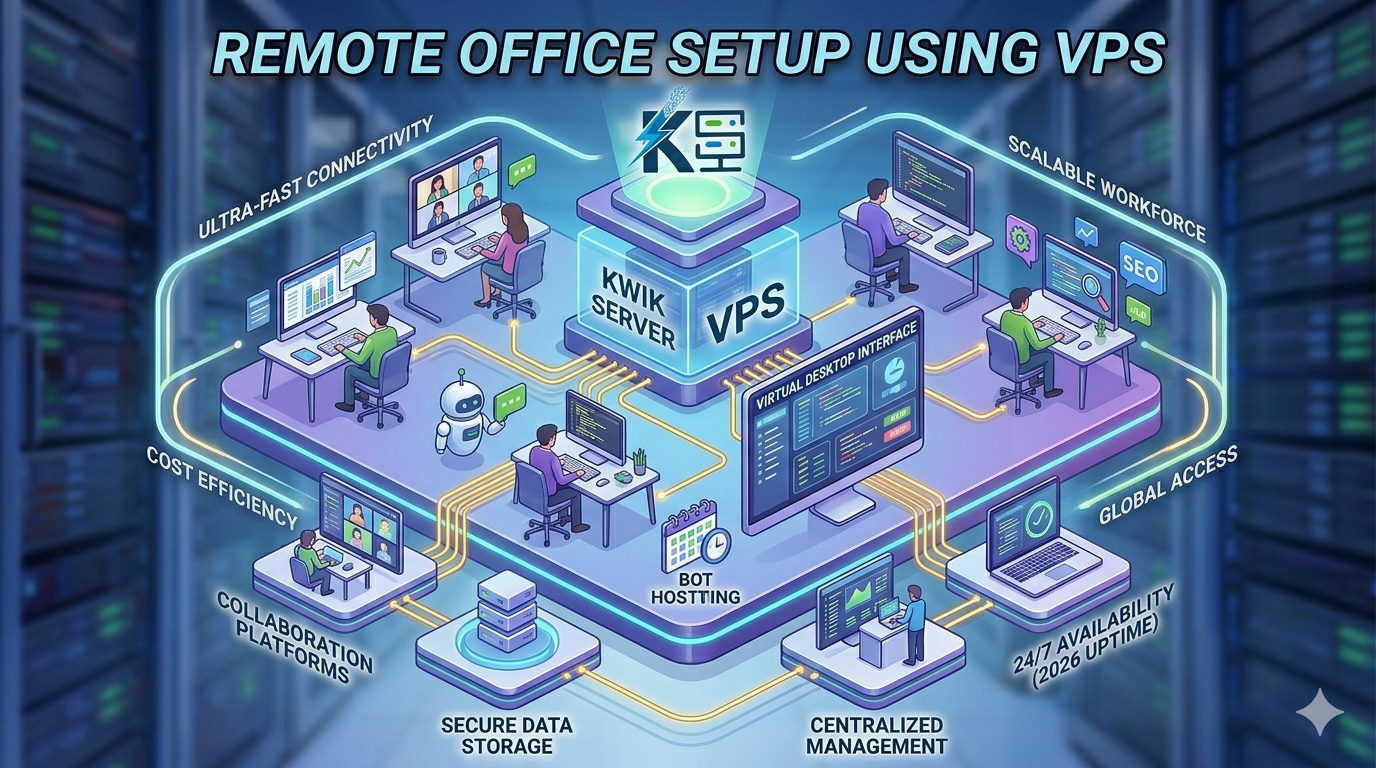
The traditional office is no longer the only way to run a professional business. In 2026, thousands of teams — from solo freelancers to 50-person companies — are replacing physical offices and expensive on-site hardware with a Virtual Private Server (VPS) remote office setup. The result: a centralized, always-on digital workspace that every team member can access from anywhere in the world, on any device, at any time.
- Best Use Cases for Cheap RDP
- How Traders Use Low-Latency RDP
- Video Editing on Cloud PC
- 📍 Remote Office Setup Using VPS (this post)
- Best RDP for Programming and Coding (coming soon)
- Run Automation Tools on VPS (coming soon)
- Hosting Websites on Windows VPS (coming soon)
- Use RDP for 24/7 Downloads (coming soon)
- Multi-User Remote Workstation Setup (coming soon)
- Build Your Own Cloud PC Business (coming soon)
- What Is a VPS Remote Office?
- Why Businesses Are Ditching Physical Offices for VPS
- Essential Tools You Can Run on a Remote Office VPS
- VPS Remote Office vs. Traditional Office: Cost Comparison
- How to Set Up a Remote Office on a VPS — Step by Step
- Keeping Your Remote Office Secure
- Who Is a VPS Remote Office Best For?
- Frequently Asked Questions
1. What Is a VPS Remote Office?
A VPS remote office is a centralized Windows server hosted in a professional data center that acts as your team’s shared digital workplace. Instead of each employee working on their own local machine with separate files and tools, everyone connects to the same VPS via Remote Desktop Protocol (RDP) and works inside a single, consistent environment.
Think of it as your company’s physical office — but hosted in the cloud. The server contains all your shared software, files, databases, and applications. Every team member logs in with their own credentials, gets their personal desktop session, and accesses everything they need without any local installation or configuration on their personal devices.
A Windows VPS from KwikServer supports multiple simultaneous RDP user sessions, making it the perfect foundation for a small-to-medium remote office. Everyone gets their own session, their own desktop, and their own access level — all on a single server.
2. Why Businesses Are Ditching Physical Offices for VPS
The shift to remote work revealed a fundamental truth: a physical office is just a place where people access computers and files. When both of those things live on a VPS, the physical office becomes optional. Here is why businesses are making the switch:
-
Dramatically lower IT costs No expensive workstations for every desk. No on-site server room. No hardware refresh cycles every 3–4 years. Employees can use budget laptops or even older machines since all processing happens on the VPS.
-
Hire talent from anywhere When your office is a VPS, geography stops being a hiring constraint. Onboard a new team member in minutes — they just need internet access and their login credentials. No IT setup visit required.
-
Consistent environment for every employee No more “it works on my machine” problems. Every team member sees the same software versions, the same network drives, and the same configurations. IT support becomes dramatically simpler.
-
Scale instantly as your team grows Adding a new team member to a physical office requires a new desk, new computer, and new IT setup. Adding someone to a VPS office takes minutes — just create a new user account and share the credentials.
-
Centralized data security Company data never leaves the server. Even if an employee’s laptop is stolen, there is no sensitive information on it — everything is locked inside the VPS. Revoke access instantly when someone leaves the team.
3. Essential Tools You Can Run on a Remote Office VPS
A Windows VPS is a full Windows environment — which means anything that runs on Windows runs on your remote office server. Here are the most valuable categories of tools teams install:
Microsoft Outlook, Thunderbird, or any desktop email client runs on the VPS. Teams also run Slack, Microsoft Teams, or Zoom directly from the server desktop for a unified communication hub.
All team files live in a single folder structure on the VPS. No more emailing attachments or syncing via Dropbox. Every team member sees the latest version of every file in real time.
QuickBooks, Tally, Sage, and similar accounting software run centrally on the VPS. Accountants and business owners access the same live data simultaneously — no manual sync or data export needed.
Microsoft Office (Word, Excel, PowerPoint) or LibreOffice runs on the VPS. Documents are always saved centrally, accessible to all team members, and never trapped on a single person’s laptop.
Desktop CRM tools, project trackers, and ERP software run on the shared server. Teams using software like Zoho, Odoo, or custom internal tools benefit from centralized access and a single source of truth.
KeePass or similar password managers run on the VPS, giving the team access to shared credentials without broadcasting passwords over chat. Only people with VPS access can reach the password vault.
Research, ad management, social media scheduling, and client portals all run from the VPS browser. Teams can maintain logged-in sessions, bookmarks, and profiles centrally without account conflicts.
For businesses that still need printing, a VPS can act as a print server routing documents to physical printers via shared network paths — combining cloud flexibility with physical office workflows.
4. VPS Remote Office vs. Traditional Office: Cost Comparison
The financial case for switching to a VPS-based remote office is compelling, especially for small businesses and growing startups. Here is a realistic cost comparison for a 5-person team:
| Cost Category | Traditional Office (5 people) | VPS Remote Office (5 people) |
|---|---|---|
| Workstations / Hardware | $5,000–$10,000 upfront | Existing devices only |
| Office rent / co-working | $500–$3,000/month | $0 |
| Server / NAS storage | $1,000–$3,000 upfront | Included in VPS plan |
| IT setup & maintenance | $100–$500/month | Minimal — provider managed |
| Windows VPS (multi-user) | — | ~$30–$80/month |
| Electricity (office + servers) | $100–$400/month | Included in VPS plan |
| Estimated monthly total | $800–$4,000+ | ~$30–$80 |
5. How to Set Up a Remote Office on a VPS — Step by Step
Setting up a functional remote office on a Windows VPS is simpler than most people expect. Here is the complete process from order to first productive workday:
-
1Choose the Right Windows VPS Plan
Visit KwikServer’s Windows VPS page and select a plan based on your team size. A good rule of thumb: allocate at least 2 GB RAM per concurrent user. A 5-person team doing standard office work is well-served by a 8–16 GB RAM plan with 4–8 vCores.
-
2Enable Multi-User RDP Sessions
By default, Windows Server supports multiple concurrent RDP sessions. Log in as admin and enable Remote Desktop Services (RDS) if needed. Create individual Windows user accounts for each team member with appropriate permission levels — admin for managers, standard user for staff.
-
3Install All Office Software
Install your team’s essential tools once on the server — Microsoft Office, your CRM, accounting software, communication tools, and browsers. Because it is installed centrally, every user gets the same software without any individual setup. No licensing headaches for separate machines.
-
4Set Up Shared Network Folders
Create a folder structure on the VPS for shared company files — organized by department, project, or client. Set folder permissions so each user can only access what they need. This replaces your file server, NAS device, and any dependency on personal Dropbox or Google Drive accounts for work files.
-
5Distribute Login Credentials to Team
Share each team member’s RDP credentials securely — the server IP, their Windows username, and a strong initial password. Have them connect via the Remote Desktop client on their device of choice. Require them to change their password on first login for security.
-
6Configure Backups & Monitoring
Set up Windows Server Backup or a third-party tool to automatically back up critical files daily. Configure basic performance monitoring so you can track CPU and RAM usage and upgrade your plan before performance becomes an issue as the team grows.
Pro Tip: Change the default RDP port (3389) to a custom port and restrict login attempts using Windows Firewall rules. This single change dramatically reduces automated brute-force login attempts against your remote office server. Pair it with strong passwords and you have a solid security baseline from day one.
6. Keeping Your Remote Office Secure
Security is the most critical consideration when moving your office to a VPS. Your entire business operation lives on this server — protecting it is non-negotiable. Here are the essential security practices every VPS remote office should implement:
🔐 Use Strong, Unique Passwords for Every User
Every team member must use a password that is at least 14 characters long and includes a mix of letters, numbers, and symbols. Enforce a password policy through Windows Group Policy so users cannot set weak passwords. Rotate passwords every 90 days at minimum.
🔒 Enable Network Level Authentication (NLA)
Network Level Authentication requires users to authenticate before a full RDP session is established. This means attackers cannot even reach the Windows login screen without valid credentials. Enable NLA in Remote Desktop settings immediately after setup.
🌐 Restrict Access by IP Where Possible
If your team works from fixed office IP addresses or uses static home IPs, configure the VPS firewall to only accept RDP connections from those specific addresses. This makes it virtually impossible for external attackers to even attempt a connection.
👤 Use Separate Admin and Standard Accounts
Never have team members log in with administrator-level accounts for daily work. Create standard user accounts for all staff and reserve the admin account for server management only. If a standard account is compromised, the damage is contained to that user’s session.
🔄 Keep Windows and Software Updated
Schedule automatic Windows updates during off-peak hours — late night or early morning. Security patches for Windows Server are critical and should never be delayed. The same applies to all installed software, especially remote desktop tools and web browsers.
Important: Never share a single set of login credentials across multiple team members. Each person must have their own user account. Shared credentials make it impossible to audit who did what, and mean that revoking one person’s access requires a password change that affects everyone.
7. Who Is a VPS Remote Office Best For?
🚀 Startups & Early-Stage Businesses
Startups that cannot afford physical office space or expensive hardware get a professional, centralized working environment from day one. A VPS remote office scales with the business — start small, add resources as the team grows, without any capital expenditure on physical infrastructure.
👨💼 Freelancers with Virtual Assistants
Freelancers who hire virtual assistants often struggle with sharing files, tools, and access securely. A shared VPS solves this instantly — give your VA their own login, access to exactly the tools they need, and nothing else. Revoke access the moment the engagement ends.
🏥 Small Professional Firms
Law firms, accounting practices, medical billing offices, and consulting firms that handle sensitive client data benefit enormously from keeping all data centralized on a VPS. No client files on personal laptops, no USB drives leaving the office, and no risk of data loss from a stolen device.
🌍 Distributed International Teams
Teams with members in multiple countries face painful software licensing, time zone challenges, and file sync nightmares. A single VPS in a central location gives everyone the same workspace, the same tools, and the same data — regardless of where they are physically sitting.
🏠 Businesses Transitioning from Office to Remote
Companies downsizing their physical office space can migrate their on-site server and workstation environment to a VPS without disrupting workflows. Employees simply connect to the VPS instead of the office network — the experience is nearly identical but without the commute.
Build Your Remote Office on KwikServer Today
Get a Windows VPS with full admin access, multi-user RDP support, genuine Windows licensing, and scalable resources. Your whole team. One server. Zero office rent.
🏢 View Windows VPS Plans8. Frequently Asked Questions
-
Windows Server supports multiple concurrent RDP sessions. The practical limit depends on your VPS resources — RAM in particular. A general guideline is 2 GB of RAM per active user for standard office work. An 8 GB plan comfortably handles 4 simultaneous users doing document editing, email, and browsing. A 16 GB plan can support 8–10 users without performance issues.
-
KwikServer’s Windows VPS plans include a genuine Windows Server license for the server itself. For multi-user Remote Desktop environments beyond 2 concurrent sessions, Microsoft requires Remote Desktop Services (RDS) Client Access Licenses (CALs). Our team can advise you on the right licensing setup for your specific team size — just reach out via our contact page.
-
Absolutely. As long as team members have a stable internet connection, they can connect to the VPS from anywhere in the world. For international teams, it is worth choosing a VPS server location that is geographically central to your team — for example, a European data center for a team spread across Europe and South Asia — to minimize latency for all users.
-
KwikServer’s infrastructure is hosted in enterprise-grade data centers with redundant power, network connectivity, and hardware. Unplanned downtime is rare. However, as a best practice, always configure automatic backups so that in the unlikely event of an issue, your data can be restored quickly. We also recommend keeping a local copy of your most critical documents as an additional safety net.
-
Yes, when properly configured. A VPS is actually more secure than a traditional office setup in many ways — all data stays on the server rather than being scattered across individual laptops. Implement the security practices outlined in this guide (NLA, strong passwords, IP restrictions, separate user accounts), and your remote office environment will meet a very high security standard for most business use cases.
-
Yes. QuickBooks, Tally, Sage, and most other accounting applications install and run normally on a Windows VPS. Running accounting software on a VPS is actually a popular choice for accountants and bookkeepers because it allows multiple authorized users to access the same company file simultaneously — something that is difficult to achieve with individual local installations.