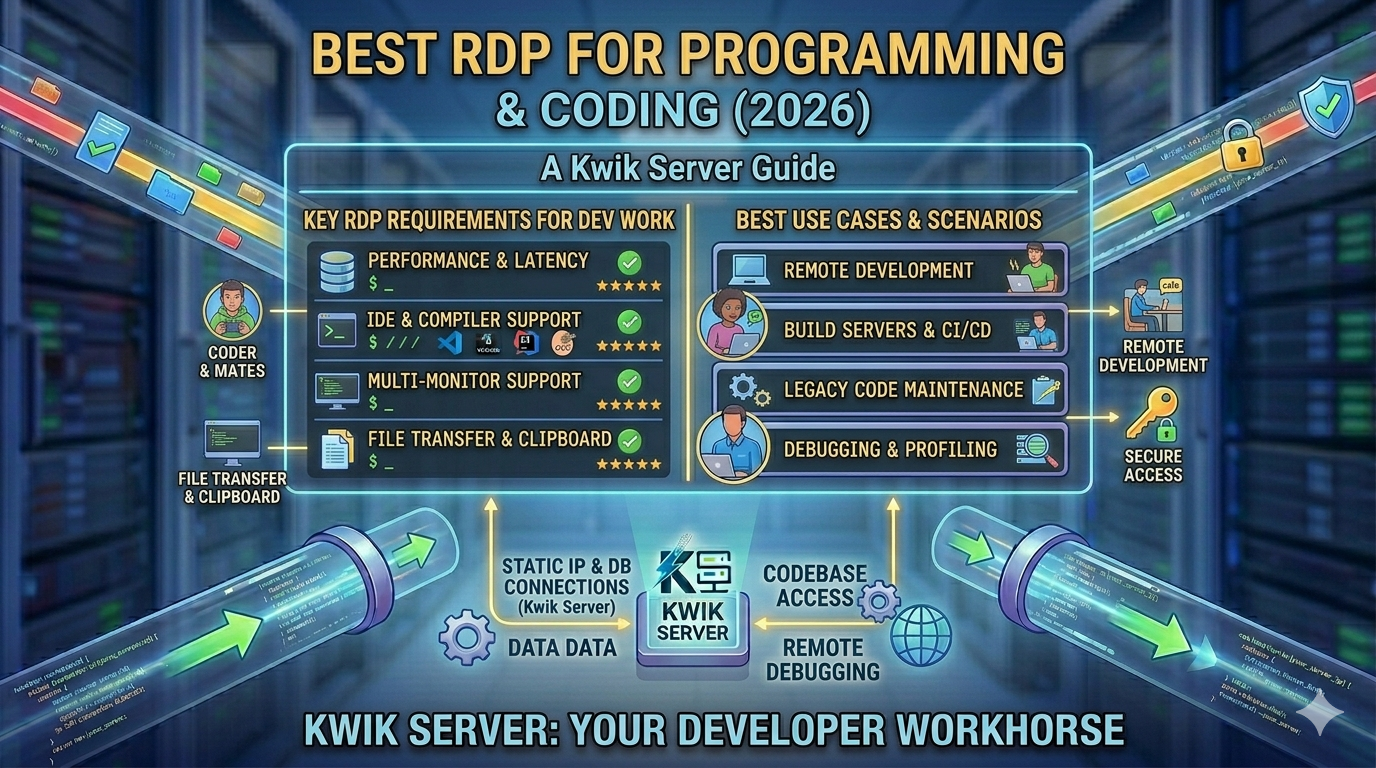
Programming is resource-hungry work. Compiling large codebases, running Docker containers, spinning up virtual machines, and hosting local dev servers can bring even a decent laptop to its knees. That is why developers worldwide are switching to dedicated RDP environments — fast, isolated, always-on Windows servers that turn any device into a professional coding workstation. In this guide, we cover the best RDP setups for programmers, which tools run best remotely, and how to pick the right server for your stack.
- Best Use Cases for Cheap RDP
- How Traders Use Low-Latency RDP
- Video Editing on Cloud PC
- Remote Office Setup Using VPS
- 📍 Best RDP for Programming and Coding (this post)
- Run Automation Tools on VPS (coming soon)
- Hosting Websites on Windows VPS (coming soon)
- Use RDP for 24/7 Downloads (coming soon)
- Multi-User Remote Workstation Setup (coming soon)
- Build Your Own Cloud PC Business (coming soon)
- Why Developers Use RDP for Coding
- Best IDEs and Dev Tools That Run on RDP
- Which Programming Languages Work Best Remotely
- Recommended Server Specs by Use Case
- When to Upgrade to a Dedicated Server
- Setting Up Your Remote Dev Environment — Step by Step
- Pro Tips for Remote Coding Productivity
- Frequently Asked Questions
1. Why Developers Use RDP for Coding
The idea of coding on a remote server might seem counterintuitive at first — but once developers experience the advantages, most never go back to relying solely on local hardware. Here is what makes an RDP or VPS the ideal coding environment:
-
Raw compute power on demand Compilation, linting, and test runs that take minutes on a laptop finish in seconds on a server with 8–16 CPU cores and 32 GB RAM. No waiting for builds — just code and run.
-
Clean, isolated dev environment No more dependency conflicts with other software on your laptop. Each project gets a consistent, reproducible environment. Wipe and rebuild in minutes if something breaks — your local machine stays untouched.
-
Code from any device Connect from a lightweight Chromebook, an old laptop, a tablet with a keyboard, or even a phone in a pinch. Your full dev environment — editor, terminal, running servers, browser — is always accessible.
-
Always-on dev and test servers Run a local dev web server, database, or API 24/7 on the RDP. Share a live preview link with clients or teammates without deploying to production. Test webhooks, scheduled tasks, and background jobs without your laptop running.
-
Source code never leaves the server For agencies and consultants handling proprietary client code, keeping everything on a private server is a strong security posture. No code stored locally, no risk from a stolen or lost developer laptop.
Did you know? Many remote developers use VS Code’s built-in Remote Development extension to connect directly to a VPS via SSH — getting full IDE functionality on a remote machine without even needing a full Remote Desktop session. We cover this workflow in the setup section below.
2. Best IDEs and Dev Tools That Run on RDP
A Windows RDP is a full Windows environment with no software restrictions. Every major IDE, editor, and developer tool runs natively — often faster than on a local machine thanks to higher RAM and CPU availability. Here are the top picks:
Lightweight yet powerful. Runs flawlessly on any RDP plan. Supports remote SSH tunneling so you can edit files on the server directly from VS Code on your local machine without a full desktop session.
Resource-heavy but incredibly powerful. Runs well on RDP plans with 8+ GB RAM. JetBrains Gateway also supports remote development, letting you run the IDE backend on the server and the UI locally.
The full Microsoft IDE for .NET, C++, and Windows application development. Runs on Windows Server without issue. Heavy on RAM — use a 16 GB plan for comfortable large-solution builds.
Run containerized apps and multi-service stacks on your RDP. Build, test, and run Docker images without touching your local machine. Combine with Docker Compose for full microservices development environments.
Run a full Linux kernel alongside Windows on your RDP. Access Ubuntu, Debian, or Arch environments from the Windows terminal. Ideal for developers who need Linux toolchains but prefer a Windows-hosted server.
Run SQL Server, MySQL, PostgreSQL, or MongoDB directly on the server alongside your code. Database GUI tools give you visual query building and schema management without any network latency between app and DB.
Git, GitHub Desktop, Sourcetree, and GitKraken all run on Windows RDP. Clone large repositories at data center speeds — no waiting hours for a 10 GB repo clone on slow home internet.
Run PHP, Node.js, or ASP.NET local dev servers on the RDP 24/7. Share a temporary URL with clients for review without deploying to staging. Laragon is especially lightweight and developer-friendly on Windows.
3. Which Programming Languages Work Best Remotely
Every major language runs on a Windows or Linux VPS. Here is how the most popular stacks perform in a remote development environment:
| Language / Stack | Environment | Min RAM | Remote Dev Experience | Best Use |
|---|---|---|---|---|
| Python | Windows / WSL2 | 4 GB | Excellent | ML, scripting, automation, Django/Flask |
| Node.js / JavaScript | Windows / WSL2 | 4 GB | Excellent | APIs, React/Next.js, full-stack apps |
| PHP (Laravel / WordPress) | Windows (Laragon/XAMPP) | 4 GB | Excellent | Web apps, CMS development, client sites |
| Java / Kotlin | Windows / WSL2 | 8 GB | Excellent | Enterprise apps, Spring Boot, Android dev |
| C# / .NET | Windows (native) | 8 GB | Excellent | Windows apps, ASP.NET, enterprise dev |
| Go / Rust | Windows / WSL2 | 4 GB | Excellent | Systems programming, CLI tools, microservices |
| Ruby on Rails | WSL2 recommended | 4 GB | Good | Web apps, rapid prototyping, APIs |
| Machine Learning (TF / PyTorch) | Windows / WSL2 | 16–32 GB | Good (GPU needed for training) | Model training, data science, research |
4. Recommended Server Specs by Use Case
Picking the right plan matters. Under-spec and your builds will crawl. Over-spec and you are paying for idle resources. Here is a practical guide:
| Developer Profile | RAM | CPU | Storage | Plan Type |
|---|---|---|---|---|
| Beginner / freelancer (web dev, scripting) | 4 GB | 2 vCores | 60–80 GB SSD | Windows VPS |
| Full-stack developer (Node, PHP, Python) | 8 GB | 4 vCores | 100–150 GB SSD | Windows VPS |
| Java / .NET / enterprise developer | 16 GB | 6–8 vCores | 200 GB SSD | Windows VPS |
| Team dev environment (3–5 devs) | 32 GB | 8–12 vCores | 300–500 GB SSD | Dedicated Server |
| CI/CD pipelines + build agents | 32–64 GB | 12–32 vCores | 500 GB+ NVMe | Dedicated Server |
| ML / AI model training | 64 GB+ | 16–64 cores + GPU | 1 TB+ NVMe | Dedicated Server |
5. When to Upgrade to a Dedicated Server for Development
A Windows VPS is perfect for individual developers and small projects. But as your workload grows — larger codebases, CI/CD pipelines, team environments, or computationally intensive tasks — a dedicated server becomes the obvious next step. Here is how to know when it is time:
-
Your build times are still too slow Even on a high-RAM VPS, shared CPU resources can bottleneck heavy compilation tasks. A dedicated server gives you full, uncontested access to every core — making a dramatic difference for Java, C++, and Rust builds.
-
Multiple developers need the same environment When 3 or more developers need simultaneous access to the same server — with their own sessions, shared codebases, and a shared database — a dedicated server ensures no one’s work is slowed by another’s resource usage.
-
You are running automated CI/CD pipelines Continuous integration pipelines that trigger builds, run test suites, and deploy code automatically need sustained, predictable CPU performance. A dedicated server with AMD EPYC or Intel Xeon processors handles this without breaking a sweat.
-
You need serious RAM for data processing or ML Machine learning model training, large dataset processing, and in-memory database workloads need 64 GB+ RAM and multi-core CPUs. Dedicated servers unlock this level of performance at a fraction of cloud provider costs.
Germany AMD Dedicated Servers — Built for Developers
KwikServer’s Germany dedicated servers ship with AMD EPYC processors, NVMe SSD storage, and high-bandwidth network connectivity — with instant deployment so you are coding within minutes of ordering. No waiting days for hardware provisioning. Perfect for CI/CD, team dev environments, and compute-heavy workloads.
🚀 View Germany Dedicated Servers6. Setting Up Your Remote Dev Environment — Step by Step
Whether you choose a VPS or a dedicated server, the setup process is quick. Here is the complete workflow to get from order to your first git commit in under an hour:
-
1Order Your Server
Choose a Windows VPS for solo development or a Germany Dedicated Server for team or heavy workloads. With KwikServer’s instant deployment, your server is provisioned within minutes of payment confirmation.
-
2Connect via RDP or SSH
For Windows servers, open Remote Desktop Connection (mstsc) and enter your server IP and credentials. For SSH-based workflows, use the provided IP and connect via PuTTY, Windows Terminal, or VS Code Remote SSH. Your server desktop or terminal is ready within seconds.
-
3Install WSL2 for Linux Toolchains (Optional)
Open PowerShell as Administrator and run wsl –install. This installs Windows Subsystem for Linux 2, giving you a full Ubuntu or Debian environment inside Windows. Install your preferred Linux-native tools — npm, pip, cargo, gem — inside WSL2 while keeping Windows as the host OS.
-
4Install Your IDE and Language Runtimes
Download and install VS Code, JetBrains, or Visual Studio directly from the developer’s website. Then install your language runtime — Python, Node.js, Java JDK, .NET SDK, or Go — exactly as you would on a local machine. Full admin access means no installation restrictions whatsoever.
-
5Clone Your Repositories
Configure Git with your credentials (git config –global) and clone your repositories from GitHub, GitLab, or Bitbucket. The data center’s high-speed internet connection makes even large repository clones finish in seconds — a 5 GB repo that takes 20 minutes at home may clone in under 60 seconds on the server.
-
6Start Coding — Then Disconnect
Open your project, start your dev server, and begin coding as normal. When you are done, simply close the RDP window. Your dev server keeps running, your Docker containers stay up, and any background processes continue executing — even though your laptop is closed. Reconnect tomorrow and pick up exactly where you left off.
7. Pro Tips for Remote Coding Productivity
🔌 Use VS Code Remote — SSH Instead of Full RDP
For developers who prefer a lightweight connection, VS Code’s Remote — SSH extension lets you edit code directly on the server from your local VS Code window — no full desktop session required. You get all of VS Code’s features (IntelliSense, debugging, extensions) while the code and processes run entirely on the remote server. This uses far less bandwidth than a full RDP connection.
📦 Use Docker for Reproducible Environments
Define your entire development environment in a docker-compose.yml file. This means any new team member — or a fresh server — can replicate your exact environment with a single docker-compose up command. No more dependency mismatch errors, version conflicts, or “works on my machine” debugging sessions.
⌨️ Set Up Windows Terminal with Custom Profiles
Install Windows Terminal on your RDP and configure profiles for PowerShell, CMD, and WSL2. Customize with your preferred theme, font, and key bindings. A well-configured terminal on a fast server makes command-line development significantly more enjoyable than fighting a slow local machine.
🔁 Automate Backups of Your Project Files
Use Task Scheduler to run a nightly backup of your projects to an external location — GitHub, an S3 bucket, or a secondary storage server. A server-side Git push at 2 AM takes seconds and ensures you never lose a day’s work regardless of what happens to the server.
Power User Tip: Pair your KwikServer RDP with a Germany dedicated server for production deployments. Develop and test on the VPS, then push to the dedicated server for staging and live environments — both in the same data center region for near-zero latency between dev and prod.
Start Coding on a Faster Server Today
From solo dev setups to team CI/CD environments — KwikServer has the right plan. Windows VPS for individuals, AMD Dedicated Servers for teams and heavy workloads. Instant deployment, full admin access, no contracts.
8. Frequently Asked Questions
-
Yes. Docker Desktop runs on Windows Server 2019 and 2022 — both of which are available on KwikServer VPS and dedicated server plans. You can run multi-container applications using Docker Compose, and WSL2 integration makes Linux container performance nearly native. For heavy container workloads running dozens of services simultaneously, a dedicated server with more RAM and CPU cores is recommended.
-
Both have their place. Cloud IDEs like GitHub Codespaces are convenient for quick tasks and small projects, but they are expensive at scale and have limited customization. A KwikServer RDP or VPS gives you a full Windows environment, any software you choose, persistent state between sessions, and significantly lower monthly costs for heavy day-to-day development. You also get full control — something cloud IDEs typically restrict.
-
Absolutely. Since your RDP is a server with a real public IP address, any web server you run on it is publicly accessible. Start a Node.js, PHP, or .NET development server on port 3000 or 8080, allow that port in the Windows Firewall, and share the IP:port URL with clients or teammates. They can browse your live dev site without you deploying to a staging server. This is a major productivity advantage for freelancers doing client reviews.
-
KwikServer’s Germany dedicated servers offer instant deployment with AMD EPYC processors — known for their exceptional multi-core performance, which directly translates to faster compile times and better parallel workload handling. Germany is also a top-tier European data center location with excellent connectivity across Europe, the Middle East, and South Asia, making it ideal for globally distributed development teams.
-
Yes, completely. Install Git for Windows on your RDP, configure your username, email, and SSH key or personal access token, and you can push and pull to GitHub, GitLab, Bitbucket, or any other remote repository exactly as you would from a local machine. The data center’s fast uplink means large pushes that take minutes at home complete in seconds from the server.
-
No — that is one of the biggest advantages. Your local device only needs to display the remote screen and send keyboard and mouse inputs. The actual code compilation, server execution, and file storage all happen on the remote machine. A five-year-old laptop with a stable 10 Mbps internet connection can give you a premium development experience on a powerful KwikServer RDP.